April 16, 2026
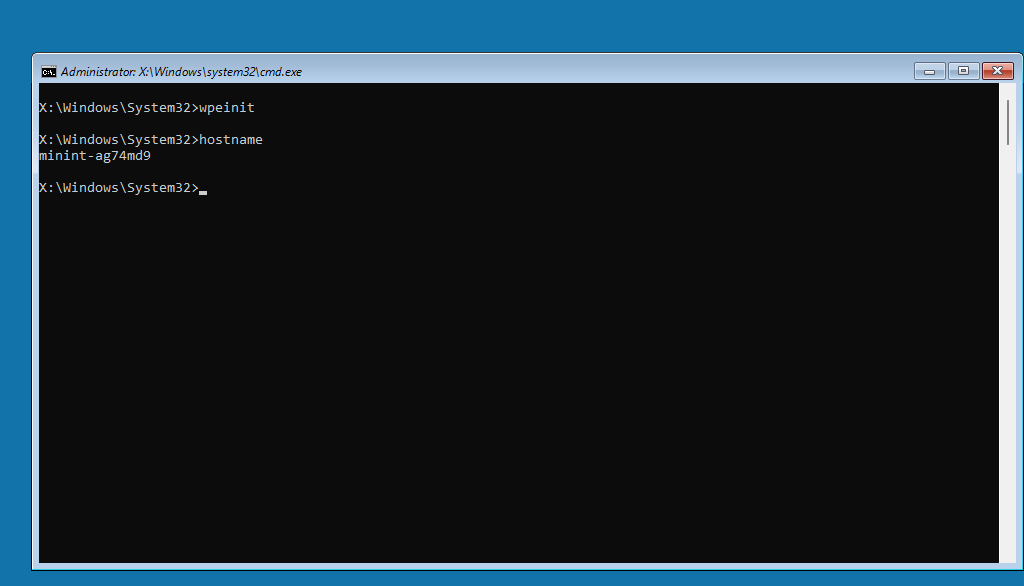
If you have done any kind Windows operating system deployment using Configuration Manager, or Microsoft Deployment Toolkit, you have probably noticed that when the system boots the WinPE boot image, it gives the computer name MININT-xxxxxxx. This is a randomly generated computer name to prevent naming conflicts. Back in my Configuration Manager OSD days (now I pretty much only use 2Pint Software DeployR), it would bug me because the status messages would get registered with the MININT name. That made it nearly impossible to link a status message back to a physical device. If there was only a way that I could create my own computer name in WinPE to something I could link back to the computer, it would make troubleshooting much easier when needed.
The first thing I thought of was just making it what the computer would actually be named. However, there was a problem with this approach. We were using the MAC address as part of the name. For laptops (even ones with ethernet adapters), we would use the Wi-Fi MAC address. WinPE does not have the necessary components for the wireless network stack (WinRE would be needed). Other things made this more complicated, like building in docks, and shared network adapters.
Time to find another property that was unique and readily available at boot up (that was the other challenge is sometimes the system would get named before the network stack would be initialized). In comes the UUID. After all, it is supposed to be unique, right? Well, it is rather long, longer than a computer name (15 characters). But in most cases, a partial UUID would get us close, if not spot on to the device being built. Since a Windows computer name cannot consist of entirely numbers, I decided to prefix it with ‘OSD’. The computer name became OSD + the first 12 of the UUID.
Next came how to implement this so that it was set before the TS engine took over. It turns out that WinPE will also process an unattend.xml file (thanks Michael Niehaus for the tip). With a little bit of PowerShell (make sure it is added to WinPE), this becomes easy to implement. When I create my WinPE boot images, I create a ProgramData\OSD file and put files in there. The Set-WinPEComputerName.ps1 can be found on my GitHub.
To launch it, create an entry in the Winpeshl.ini file that looks like the following:
[Launch]%windir%\System32\WindowsPowerShell\v1.0\powershell.exe,-executionpolicy bypass -noprofile -windowstyle hidden -file "x:\ProgramData\OSD\Set-WinPEComputerName.ps1"
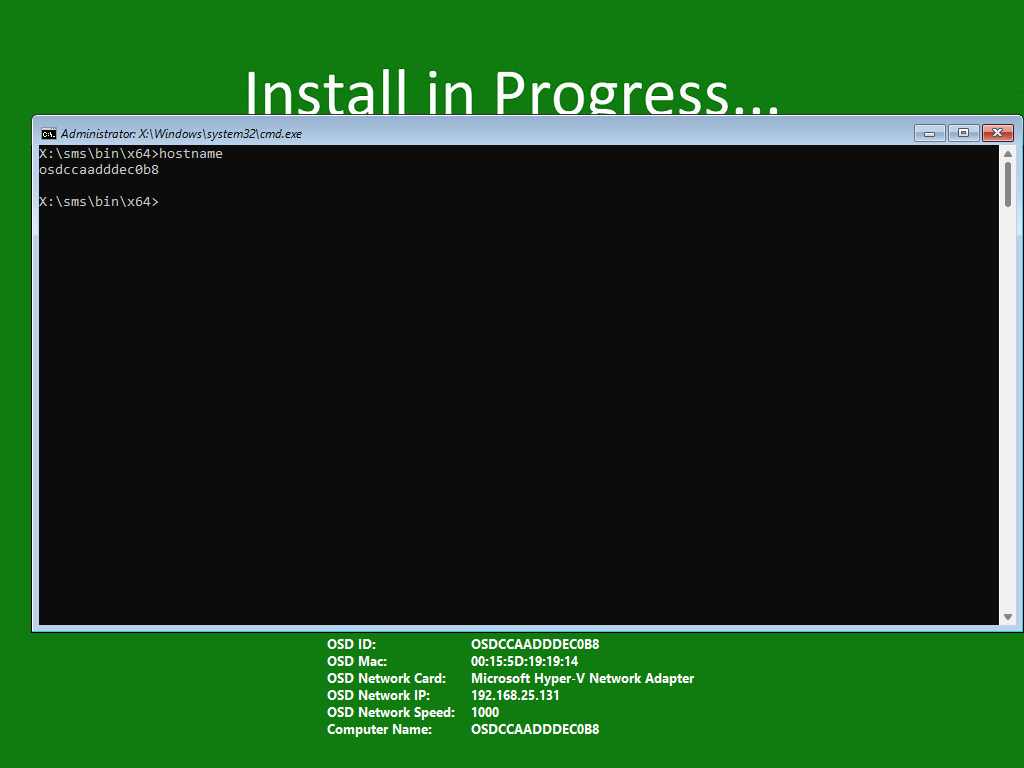
You might notice that I also call it and OSD ID, however, more on that for another time…
Originally posted on https://miketerrill.net


Nice work, Mike. As always 🙂
Thank you Mike.
In my time SCCM was the only sustem we have. We are now fully autopilot laptop build process.
I am interested to hear a bit more about 2Pint Software https://materrill.wordpress.com/?action=user_content_redirect&uuid=e8ad12d6bed9f7647e5d02646cea20b6940c4aee5daa21a03400f03c9d1e17f2&blog_id=59107279&post_id=1701&user_id=0&subs_id=416982279&signature=64e1b01c82252bc4eeb5fc2d9123f9ad&email_name=new-post&user_email=sonnguyen35@gmail.com&encoded_url=aHR0cHM6Ly8ycGludHNvZnR3YXJlLmNvbS8&email_id=74366fc8a8d21aebd5ea73ffe0450d30 DeployR https://materrill.wordpress.com/?action=user_content_redirect&uuid=98fbd54c9cad30e9cc093355ee7e67f768b56ee5a1c2605a2d312805ac2f786e&blog_id=59107279&post_id=1701&user_id=0&subs_id=416982279&signature=ab88f744c6214716713908beaba647a0&email_name=new-post&user_email=sonnguyen35@gmail.com&encoded_url=aHR0cHM6Ly8ycGludHNvZnR3YXJlLmNvbS9wcm9kdWN0cy9kZXBsb3ly&email_id=74366fc8a8d21aebd5ea73ffe0450d30
Best regards Sonny
Sure – I will be writing some blogs here on DeployR, as well as on the 2Pint blog site. We also have a bunch of videos on our YouTube channel where you can learn more about it – https://www.youtube.com/@2PintSoftware