October 31, 2025
If you are doing operating system deployments or upgrades using Configuration Manager along with BranchCache, with your Distribution Points running on Windows Server 2022 or Windows Server 2025, then you might be experiencing download issues. First off, this is not a ConfigMgr issue, but a Server 2022/2025, BITS/BranchCache issue that happens when downloading large files. In other words, if you have other tools and processes that invoke BITS while BranchCache is enabled, the same thing will happen when attempting to download large files. The good thing is that Microsoft is now aware of this issue. The other good news is there is a work around until the root of the issue can be fixed in monthly cumulative update.
In order to test this issue and try to reproduce it in order to determine the cause, I build two new Distribution Points – one running Server 2022 (called S22) and the other running Server 2025 (called S25). My lab already had a Distribution Point running on Server 2019.
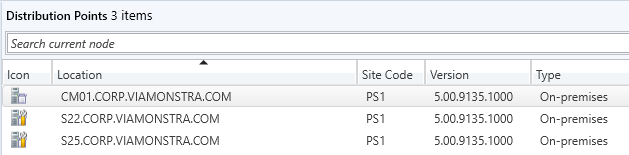
The easiest way to control which DP is being used is by leveraging the Distribution Point Maintenance Mode. In the above screen shot, both S22 and S25 are in maintenance mode. By only having one active at a time, it is easy to control which one will be used for downloading content.
To reproduce the issue, create a pre-cache distribution using the install.wim as the content. In kicking off the pre-cache job, the following error will be logged:
WinHttpReceiveResponse failed.
SendWinHttpRequest failed. 80072efe.
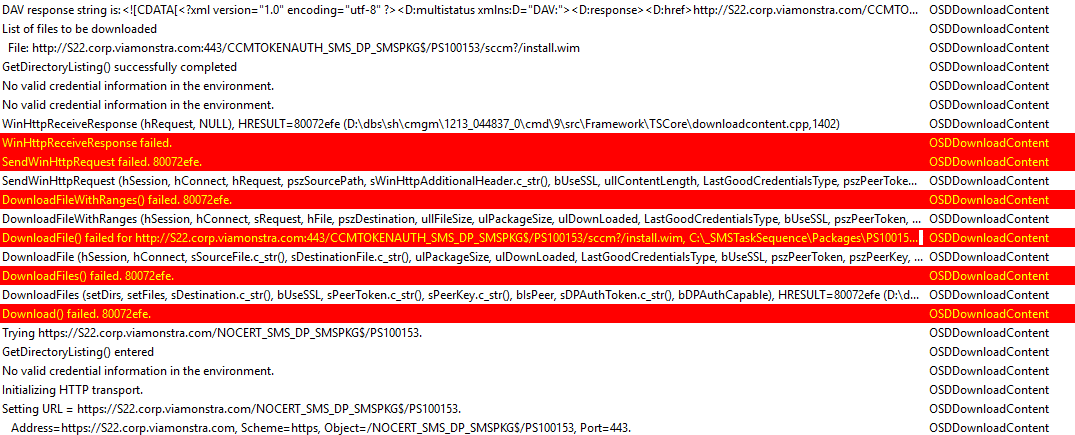
We can also reproduce this outside of ConfigMgr by simply copying the install.wim file to wwwroot and then running Start-BitsTransfer. Whereas downloading a smaller boot.wim file (668 MB), works without any issues.

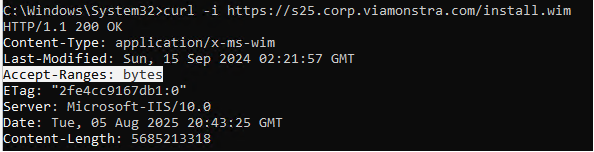
This error message seems to indicate that the server hosting the files does not support the HTTP range header. However, running curl -i, we can see that it does support byte range requests:
Until Microsoft creates a fix for this issue, there are two work arounds for the time being – both involve disabling HTTP/2. The first one is on the client side and can be done by setting the following registry key followed by a reboot:
[HKEY_LOCAL_MACHINE\SOFTWARE\Microsoft\Windows\CurrentVersion\Internet Settings\WinHttp]
“EnableDefaultHTTP2″=dword:00000000
The other option is to disable HTTP/2 on only the impacted servers (like any BranchCache enabled Distribution Points or any web server that is serving up large files). This can be done by enabling the “Disable HTTP/2” on the site bindings in IIS:

It can also be set using PowerShell by running the following script that can be downloaded from my GitHub: https://github.com/materrill/miketerrill.net/blob/master/BranchCache/IIS-DisableHTTP2
Originally posted on https://miketerrill.net

 Mike's Tech Blog